Nimble Streamer supports AJA SDI input and output for broadcast and production workflows. It can capture video with embedded audio from AJA SDI devices, process it through Live Transcoder, and deliver the result via SRT, RTMP, WebRTC WHEP, HLS, MPEG-DASH, NDI, SDI and other supported live streaming protocols. It can also take an existing live stream and output it to AJA SDI hardware.
With this update, Nimble Streamer can capture video with embedded audio from an AJA SDI input, process it with Live Transcoder, and prepare it for further delivery, recording, repackaging, or transcoding. Nimble can also take a live stream already available on the server and send it to an AJA SDI device with minimal latency. It also allows interconnecting SDI and NDI content for full interoperability.
This feature is intended for SDI-based production chains where Nimble Streamer is used as a bridge between baseband video infrastructure and IP streaming workflows. It’s a great addition to previously released DeckLink input and DeckLink output SDI processing support.
| Capability | Supported in Nimble Streamer |
|---|---|
| AJA SDI input | Yes |
| AJA SDI output | Yes |
| Embedded audio capture | Yes |
| Output to SRT / RTMP / WebRTC WHEP / HLS / NDI | Yes |
| Ubuntu support | Ubuntu 22.04 and later |
| Supported devices | Kona, Corvid |
| Typical users | broadcasters, production teams, streaming engineers, OTT/IPTV teams |
Prerequisites
The SDI feature set requires the latest versions of Nimble Streamer and Live Transcoder packages.
Currently SDI support is available on Ubuntu 22.04 and later versions. Please refer to Nimble installation page and Transcoder installation page for upgrade details. Make sure you have Transcoder license activated on your Nimble instance in order to make Transcoder work there.
When to use this workflow
Use AJA SDI support in Nimble Streamer when you need to connect professional SDI equipment to IP streaming workflows without an external SDI-to-IP gateway. Typical scenarios include SDI contribution to SRT, SDI to WebRTC WHEP playback, SDI to HLS/DASH packaging, IP stream to SDI output for broadcast equipment, and SDI/NDI interconnection in production environment.
Nimble SDI implementation is fully compatible with AJA Kona and with AJA Corvid devices.
AJA SDK exclusive access
AJA SDK uses exclusive device access if it’s an OEM retail app. This means that when one application can take full control of an AJA card, any other applications cannot use that same card while it is occupied. Nimble is one of those OEM retail apps.
If Nimble Streamer cannot use the selected AJA device, check whether another application is already using the card. Stop the other application or release the device, then restart the Nimble scenario. This is especially important on servers where AJA tools, test applications, monitoring utilities, or another media service may be running at the same time.
Supported SDI frame rates and frame geometries
AJA SDI SDK supports the following frame rates and frame geometries.
Frame Rates
The following frame rates are covered:
- 120 fps
- 119.88 fps, also represented as 120000/1001
- 60 fps
- 59.94 fps, also represented as 60000/1001
- 50 fps
- 48 fps
- 47.95 fps, also represented as 48000/1001
- 30 fps
- 29.97 fps, also represented as 30000/1001
- 25 fps
- 24 fps
- 23.98 fps, also represented as 24000/1001
- 15 fps
- 14.98 fps, also represented as 15000/1001
Frame Geometries
The following frame geometries are covered:
- 1920×1080 for 1080i and 1080p, without VANC extension
- 1280×720 for 720p, without VANC extension
- 720×486 for NTSC 525i and 525p60, without VANC extension
- 720×576 for PAL 625i, without VANC extension
- 1920×1114 carrying 1920×1080 active video, with taller VANC mode
- 2048×1114 carrying 2048×1080 active video, with taller VANC mode
- 720×508 carrying 720×486 active video for NTSC 525i, with tall VANC mode
- 720×598 carrying 720×576 active video for PAL 625i, with tall VANC mode
- 1920×1112 carrying 1920×1080 active video for 1080i and 1080p, with tall VANC mode
- 1280×740 carrying 1280×720 active video for 720p, with tall VANC mode
- 2048×1080 for 2K 1080p, without VANC extension
- 2048×1556 for 2K 1556 PsF film format, without VANC extension
- 2048×1588 carrying 2048×1556 active video for 2K 1556 PsF film format, with tall VANC mode
- 2048×1112 carrying 2048×1080 active video for 2K 1080p, with tall VANC mode
- 720×514 carrying 720×486 active video for NTSC 525i and 525p60, with taller VANC mode
- 720×612 carrying 720×576 active video for PAL 625i, with taller VANC mode
- 3840×2160 for UHD, without VANC extension
- 4096×2160 for 4K, without VANC extension
- 7680×4320 for UHD2, without VANC extension
- 8192×4320 for 8K, without VANC extension
Get available AJA SDI devices
To find AJA devices available on the server, use the following utility which is delivered with Nimble Transcoder package:
/usr/bin/nimble_ajaThe command returns device information in JSON format. Example:
{
  "aja_sources": [
    {
      "name": "Corvid44 - 0",
      "description": "Corvid44",
      "serial": "00U15197"
    }
  ]
}
In the Transcoder scenarios described below, the device can be referenced by any of these identifiers:
0– device indexCorvid44– device name00U15197– serial number
You can keep the tool running continuously, it will update the list as soon as devices’ list change.
Nimble API for AJA devices list
Nimble Streamer native API allows obtaining the list of available AJA devices like you would do by using nimble_aja command line tool. The URL for API call is this one:
http://127.0.0.1:9999/manage/aja/list
It returns the same data as you get from the nimble_aja tool. Visit Nimble API reference for API access setup details.
AJA SDI input workflow
AJA SDI input allows Nimble Streamer to take an incoming SDI signal from an AJA device, including video and audio, and pass it into the Live Transcoder pipeline. Once the stream is decoded, it can be processed like any other live sources in Nimble Streamer. You can encode it, transcode it, apply filters, repackage it, record it with DVR, or deliver it via supported output protocols.
Nimble Streamer live output options include RTMP, MPEG-TS over HTTP or UDP, SRT, WebRTC WHEP, NDI, SDI, and more, see all supported live streaming protocols.
Transcoder scenario for SDI input
Here’s the minimal scenario for getting SDI input and generating the output for further use.
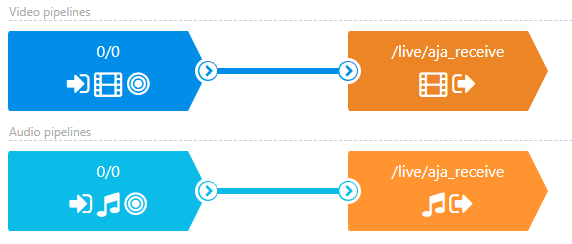
It has two blue decoder elements for SDI video and audio and two orange video and audio encoders.
Let’s see the input side first.
SDI video input setup
To get SDI input, add a blue decoder element to your scenario. Click on “SDI (AJA)” selector there.
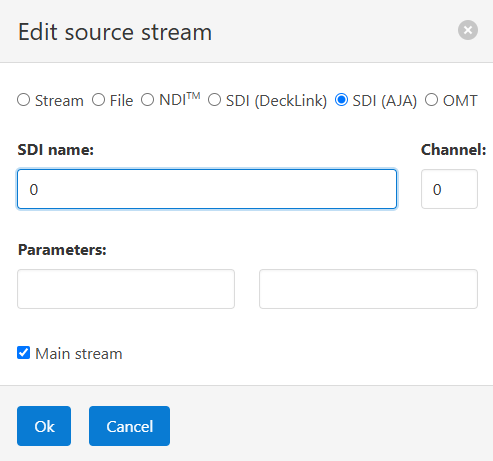
Here you need to specify SDI name to define which SDI device will be used. In this case we refer to it by its device index (“0”) but you can use its name or serial number, see “Get available SDI devices” section above.
Channel field defines which SDI hardware input channel is used for the input, starting from zero. Also check input_source parameter below.
By default, that’s all that is required to start working with SDI video.
Additional parameters
The AJA SDI input supports the following parameters.
frames
Optionally specifies the device SDRAM frame range to use. By default, Nimble uses the first free 7 frames.
audio_channels
Defines how many audio channels should be captured from the SDI input. Default value is 0. Supported explicit values are 0, 6, 8, 16.
When audio_channels is not set or is set to 0, Nimble keeps the audio channel layout from the SDI input unchanged. E.g. if the SDI input has 8 channels, Nimble captures 8 channels.
If the configured value is lower than the actual number of incoming channels, extra input channels are discarded. If the configured value is higher than the actual number of incoming channels, missing channels are filled with silence.
input_source
Selects the physical AJA input source used for capture. This parameter is useful when the selected AJA device exposes multiple input types – SDI and HDMI. If the source is not specified, Nimble uses the default SDI/HDMI input source for the selected device and channel configuration. Use this option only if you have both HDMI and SDI inputs and you need to use HDMI.
SDI audio input setup
The audio decoder is similar to video.
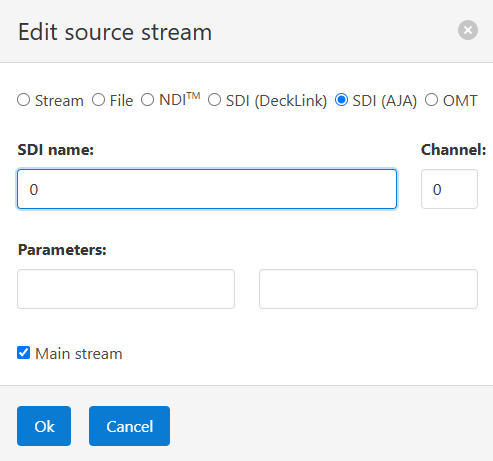
You specify the same SDI name and Channel that you’ve just used for video.
If you specified any parameters in video decoder, they will be applied to audio, you don’t need to duplicate them here.
Output setup
The output is set according to your live streaming use case. E.g. you can put filters for scaling or create the ABR ladder. In our case we added just basic encoders for video and audio as shown below. This is just a sample, you can use any other encoding parameters for your cases.
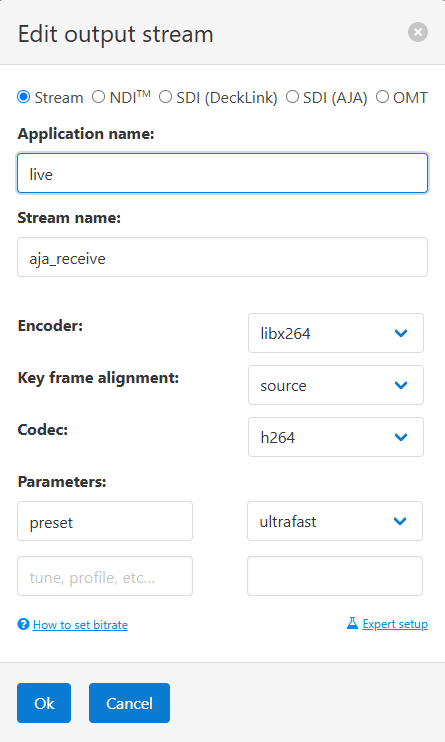
That’s it, you can save the Transcoder scenario now and it will start working on your Nimble instance within a few seconds.
As we mentioned above, the output can be played with any output protocol supported by Nimble.
SDI is a read-time technology so if you want to bring the content to your audience with the lowest latency, we recommend using WebRTC WHEP playback or SLDP with our Nimio player, they both can deliver it with sub-second delay.
AJA SDI output workflow
Nimble Streamer can take a live stream available in Nimble and send it out to an AJA SDI device.
Any available live streaming protocol can be processed for further transcoding into SDI: RTMP, SRT, MPEG-TS, WebRTC WHIP and many others listed on this page. Also, with Nimble Streamer Playout, you can generate a live stream from local files and live streams with server-side playlists with scheduled blocks and then generate continuous SDI output signal.
For SDI output, make sure the video stream parameters match a format supported by the target AJA device. Use Transcoder filters to align resolution, frame rate, and audio before sending the stream to SDI.
Transcoder scenario for SDI output
Here’s the sample scenario for generating the SDI output.
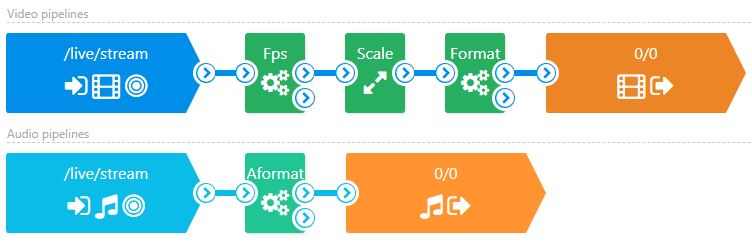
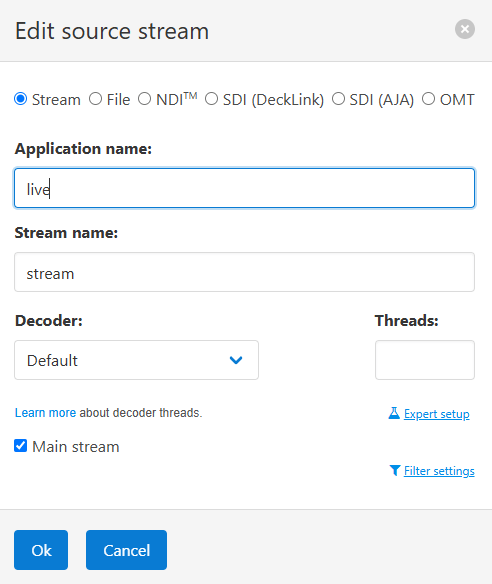
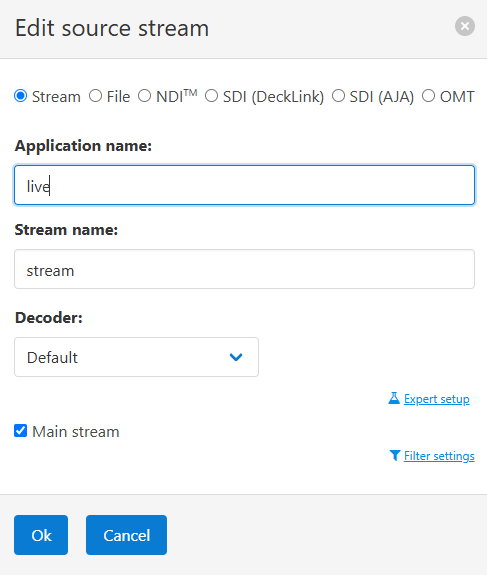
It has two blue decoder elements for incoming stream, several content filters and two orange video and audio encoders for SDI output.
Let’s see the input side first.
Input setup
The decoder elements are typical and made for demo purposes. You can use their defaults if you don’t need some special processing (like GPU decoding or specific audio encoder).
Filters to prepare content for SDI
Further filters make the incoming content proper for SDI device.
fps filter
This filter sets the frames per second for the stream.
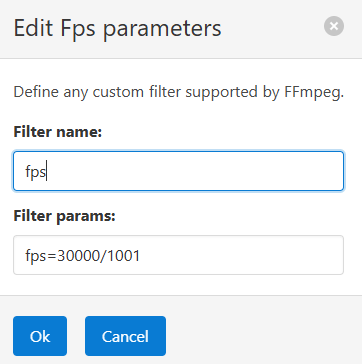
In our example it’s “fps=30000/1001” (which is around 29.97 FPS). Please refer to “Supported SDI frame rates and frame geometries” section above for exact values. Please use fractions (like 30000/1001) instead of decimal values if they are listed.
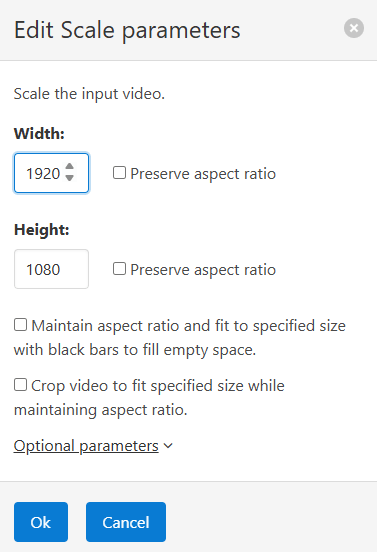
scale filter
This filter sets the size of the frame. In our case it’s Full HD 1920 by 1080 pixels.
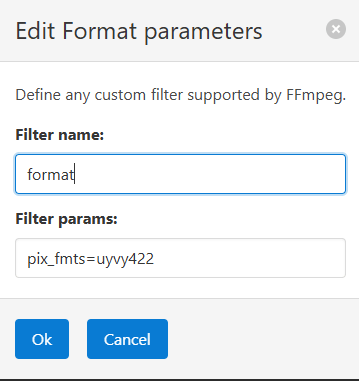
format filter
This filter sets the pixel format of the content. It’s “pix_fmts=uyvy422” in our case.
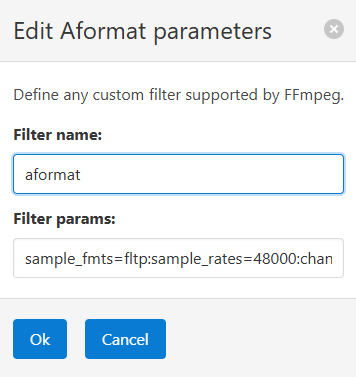
aformat audio filter
For audio, it’s important to set correct format. Use the value from our example: “sample_fmts=fltp:sample_rates=48000:channel_layouts=7.1”. It sets the rate to 48KHz and makes it 7+1 audio for 8 channels.
SDI output setup
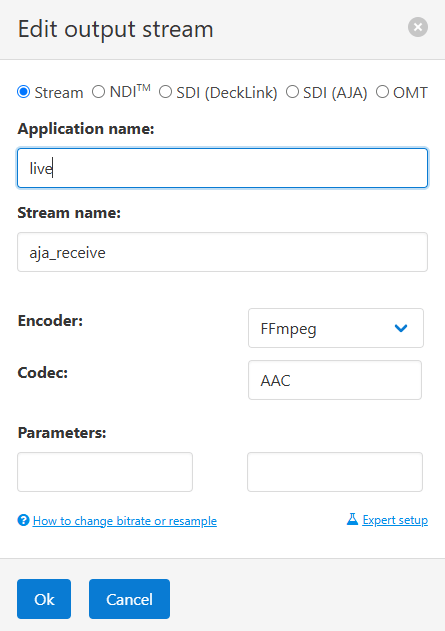
The output SDI settings are defined in encoder elements, like this one for video:
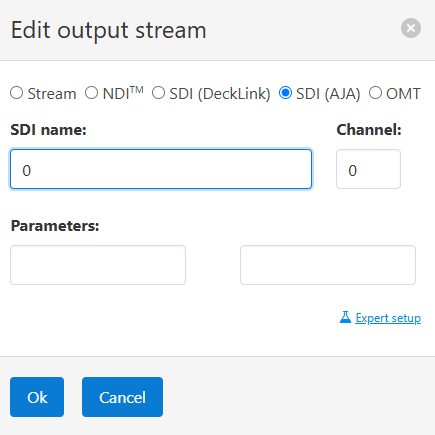
You need to specify SDI name based on AJA device names as we described above in SDI input section. The same applies to the Channel.
Additional optional parameters
In addition, the AJA SDI output supports the following optional parameters.
frames
It’s the same as we described for SDI input. It specifies the device SDRAM frame range to use. By default, Nimble uses the first free 7 frames.
audio_buffer_size
Defines how many audio frames can be stored while waiting for delayed video frames from the encoder. This buffer helps keep audio available for the matching video output window when video arrives later than audio. The value should be large enough to tolerate normal encoder timing variation, but not so large that it increases practical latency. By default, it’s “10”.
video_buffer_size
Defines how many video frames can be stored while waiting for delayed audio frames from the encoder. This buffer helps keep video available while the corresponding audio arrives. As with audio buffering, the value should be chosen with latency requirements in mind. By default, it’s “3”.
Audio encoder is set up the same way:
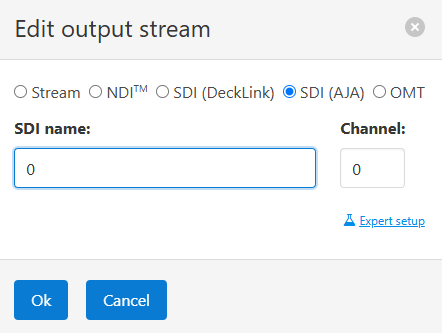
Just specify SDI name and Channel just like you did for video. Any additional parameters that are specified in Video encoder, will be applied for audio as well automatically, you don’t need to duplicate them here.
Nimble Playout as a source
You can use Nimble Playout to create SDI output from a mix of local files and live streams.
Read Nimble Playout as a TV channel: creating SDI output from local files and live streams article for more details.
Nimble Streamer AJA SDI performance
Nimble Streamer was designed with high performance in mind. Our customers use Nimble Streamer in high load use cases and they need to be sure that Nimble handles their streams perfectly, even if it’s high-Gbps SDI input and output.
Therefore, AJA SDI was implemented in Nimble Streamer with the best possible performance, in order to take care of the huge high-stakes production payloads.
Our latest measurements show that one input consumes around 13% of one CPU for one incoming stream, and around 16% for the output. Here’s the screenshot from htop command to demonstrate that:

This makes AJA SDI workflows practical for servers that need to handle multiple SDI devices, depending on resolution, frame rate, encoding settings and overall server load.
FAQ
Does Nimble Streamer support AJA SDI input?
Yes. Nimble Streamer can capture video with embedded audio from AJA SDI devices and process it through Live Transcoder.
Does Nimble Streamer support AJA SDI output?
Yes. Nimble Streamer can take an existing live stream and send it to an AJA SDI output device.
Can Nimble Streamer convert AJA SDI to WebRTC?
Yes. AJA SDI input can be processed in Nimble Streamer and delivered through WebRTC WHEP playback.
Can Nimble Streamer convert AJA SDI to SRT or HLS?
Yes. Nimble Streamer can process AJA SDI input and deliver it via SRT, HLS, MPEG-DASH, RTMP, WebRTC WHEP, NDI and other supported protocols.
What operating systems support AJA SDI in Nimble Streamer?
The article states that SDI support is available on Ubuntu 22.04 and later versions.
Start using AJA SDI with Nimble Streamer today
To try AJA SDI input or output, install or upgrade Nimble Streamer and Live Transcoder, detect your AJA devices and configure the required Live Transcoder scenario in WMSPanel as we showed above.
If you have questions, issues, or suggestions related to SDI workflows, contact the Softvelum helpdesk.