In professional broadcast workflows, SDI remains the backbone for reliable, low-latency video transport. Whether it’s live production, contribution feeds, or playout chains, SDI connections are still widely used to move uncompressed video between cameras, switchers, and hardware capture devices. Until now, integrating SDI sources into IP-based streaming pipelines often required additional software layers or dedicated gateway tools. With the latest update, Nimble Streamer adds native SDI input support with a read function for Blackmagic-compatible (DeckLink) hardware, allowing direct ingestion of SDI signals into the Nimble processing pipeline.
From an engineering perspective, this addition closes an important gap between traditional broadcast infrastructure and modern streaming delivery. Instead of relying on external conversion utilities, Nimble Streamer can now read SDI signals directly from supported devices and process them just like any other live source, enabling encoding, transcoding, packaging, and delivery in real time. This makes it easier to integrate professional SDI equipment into scalable IP workflows while preserving performance, stability, and precise control over the signal path.
Prerequisites
The SDI feature set requires the latest versions of Nimble Streamer and Live Transcoder packages.
Currently SDI support is available on Ubuntu 22.04 and Ubuntu 24.04 only. Please refer to Nimble installation page and Transcoder installation page for upgrade details.
Also, make sure you have Transcoder license activated on your Nimble instance in order to make Transcoder work there.
Get available SDI sources
Once the latest package is installed, you need to launch this util:
/usr/bin/nimble_sdiIt will generate the list of all available SDI devices, like this:
Found 4 SDI devices:
81:8c1580a0:00000000, DeckLink Duo (1)
81:8c1580a1:00000000, DeckLink Duo (2)
81:8c1580a2:00000000, DeckLink Duo (3)
81:8c1580a3:00000000, DeckLink Duo (4)
If this command fails, please install the latest drivers for your SDI device. That’s version 15.3 at the moment but you may use some more recent one when you read this.
Decoder setup
To get SDI into the streaming pipeline, you need to create a Live Transcoder scenario and put decoder element there. Once you set up decoder, you may add encoders for video/audio and some optional filters.
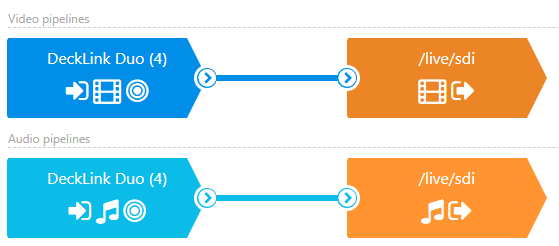
Here’s what you need for SDI input processing.
Video decoder
Choose SDI (DeckLink) option on top.
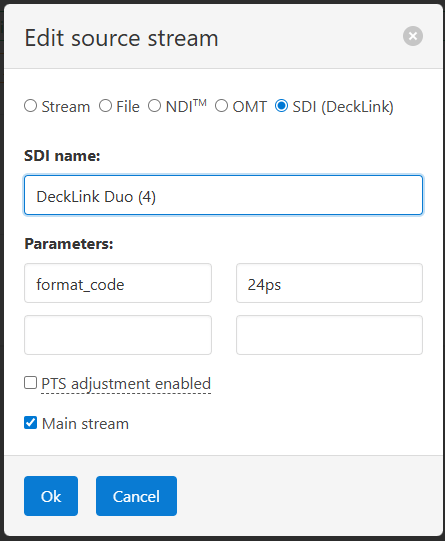
SDI name field value needs to have the same name as you have for your SDI input. You can see the full list of your SDI sources in “nimble_sdi” tool.
Parameters fields need to have one mandatory entry of format_code. The rest are optional and their usage depends on your hardware and use case.
format_code is a very important parameter specifying the format of the input stream. If you miss it, the default value of “24ps” is used. If you specify the wrong format_code (the one which is not used by your hardware), it will not work properly either. Please check Troubleshooting section below for related information.
duplex_mode is a parameter critical for correct setup. If it is set and subsequently removed from the configuration, the driver retains the last known value. Because the driver caches this state, simply omitting the parameter will not reset it. To change the mode, you must explicitly set it to the correct current value.
You can find full list of other available parameters of DeckLink-compatible SDI decoders in this doc from ffmpeg.
Audio decoder
Choose SDI (DeckLink) option on top.
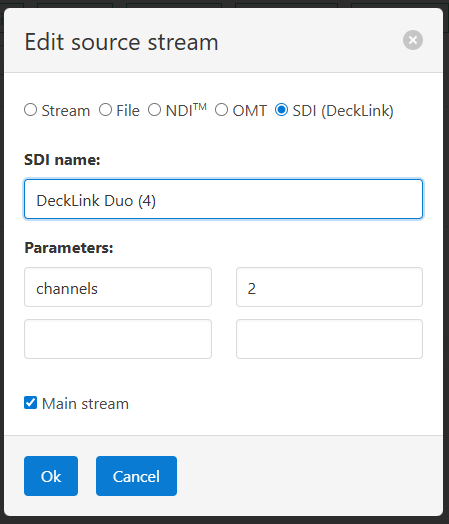
SDI name field value needs to be the same name as you defined for video encoder above.
channels parameter defines number of audio channels to capture. Supported values are “2”, “8” or “16”. By default, it’s “2”.
Just as in case of video decoder parameters, you can refer to docs from ffmpeg.
Encoding and further usage
In order to use the received SDI content in streaming pipelines, the decoded stream needs to be encoded to appropriate format. In the scenario shown above, we have one encoder for video and one for audio, here are their settings for our example.
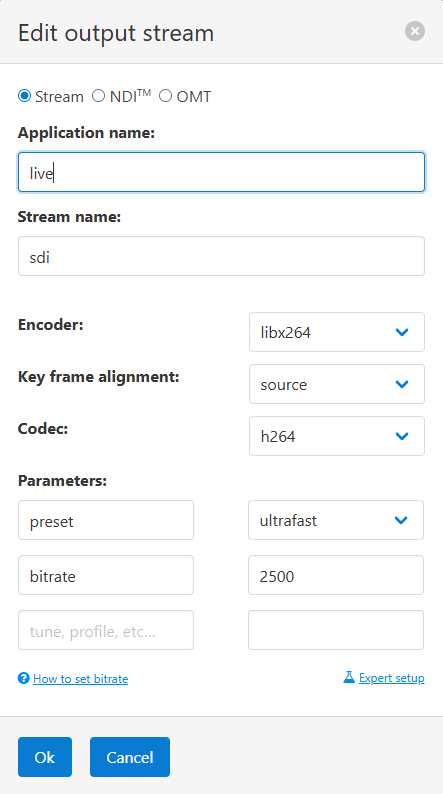
We use libx264 as encoder for our test but you can use a variety of software and hardware solutions.
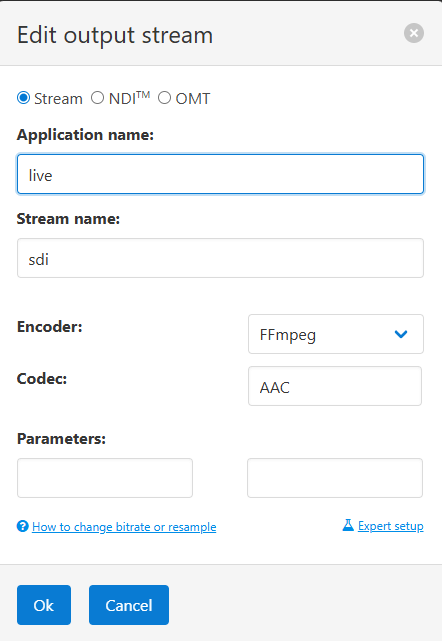
For the audio, we chose a default AAC encoder.
You can read more about further Transcoder setup and usage in Transcoder documentation reference.
Once the stream is encoded and is available, you can use it just like any other input. This includes all scenarios list in live streaming digest page. You may also find useful the failover and emergency hot-swap features that are also available for SDI.
Troubleshooting
If you see anything but your designated incoming content – such as a test pattern – this means you need to set up correct format_code parameter for your decoder element.
To see the list of supported formats, you need to use FFmpeg toolset. In order to do that you need to build FFmpeg with DeckLink support on the same server where you installed Nimble Streamer.
Once you have your ffmpeg build ready, run it with list_formats option:
> ./ffmpeg -y -f decklink -list_formats 1 -i 'DeckLink Duo (4)'

Supported formats for 'DeckLink Duo (4)':
  format_code  description
  ntsc    720x486 at 30000/1001 fps (interlaced, lower field first)
  pal     720x576 at 25000/1000 fps (interlaced, upper field first)
  23ps    1920x1080 at 24000/1001 fps
  24ps    1920x1080 at 24000/1000 fps
  Hp25    1920x1080 at 25000/1000 fps
  Hp29    1920x1080 at 30000/1001 fps
  Hp30    1920x1080 at 30000/1000 fps
  Hp50    1920x1080 at 50000/1000 fps
  Hp59    1920x1080 at 60000/1001 fps
  Hp60    1920x1080 at 60000/1000 fps
  Hi50    1920x1080 at 25000/1000 fps (interlaced, upper field first)
  Hi59    1920x1080 at 30000/1001 fps (interlaced, upper field first)
  Hi60    1920x1080 at 30000/1000 fps (interlaced, upper field first)
  hp50    1280x720 at 50000/1000 fps
  hp59    1280x720 at 60000/1001 fps
  hp60    1280x720 at 60000/1000 fps
Now you can try those codes to see which one works the best for your particular hardware.
Then you can test it with ffmpeg and vlc like this:
./ffmpeg -y -f decklink -format_code 24ps -i 'DeckLink Duo (4)' -c:a copy -c:v copy output.avi
vlc output.avi
You can add any other parameters for your devices to try.
Out team is working on other scenarios and features related to SDI, so stay tuned for our updates.
If you have any questions, issues or suggestions, please contact our engineering team.