Softvelum has recently added a WMSPanel interface for managing voice recognition settings in Nimble Streamer. This gives administrators a form-based workflow for the same ASR configuration that was previously handled through nimble.conf and transcriber-config.json.
Who is this for? It’s designed for operators who need to enable speech-to-text, translation, and WebVTT subtitles for live workflows without editing JSON configuration files for every application or stream.
This does not remove the configuration-file workflow. Existing config-based setup remains supported and is still useful for automation, version control, or cases where sensitive ASR provider data should stay only on the Nimble Streamer server. The UI adds another way to manage the same practical scenario: choose a server, define where recognition applies, select the ASR engine, and set application- or stream-level parameters.
Voice recognition setup via UI workflow
Nimble Streamer voice recognition can generate subtitles from live stream audio and deliver them as WebVTT subtitles in the HLS output. Previous articles described how to configure this using files:
The new WMSPanel page brings this configuration into the control panel.
Voice recognition settings are created for a selected Nimble Streamer server. This is important: ASR processing is not a global account-level setting. You select the required server, and then configure voice recognition for that server.
From there, you can define whether a setting applies to:
- a whole application;
- a specific stream inside an application;
- different applications and streams with different languages or provider options.
This follows the same model as the JSON configuration examples: app defines the Nimble application, while stream narrows the setting to one stream. If the stream field is not specified, the setting applies to all streams within that application.
Server-wide provider settings and config fallback
Speechmatics and KWIKmotion require provider-level connection parameters, such as API URL and API key. These can be configured at the server level in WMSPanel.
If server-wide Speechmatics or KWIKmotion integration settings are not defined in the UI, Nimble Streamer takes them from the local configuration files, just as before.
This is useful for deployments where operators do not want to store provider credentials in WMSPanel. For example, the ASR API key may remain only in nimble.conf or transcriber-config.json on the server, while WMSPanel is used to manage application and stream-level recognition rules.
In practice, this gives two valid operating models:
- manage provider credentials and stream rules from WMSPanel;
- keep provider credentials in local Nimble configuration and use WMSPanel only for stream-level settings.
Step-by-step: create voice recognition setting for a new application
Here’s how you set up ASR via WMSPanel UI.
- Open WMSPanel and go to Nimble Streamer → Live Streams Settings.
- Select the Nimble Streamer server where voice recognition must run.
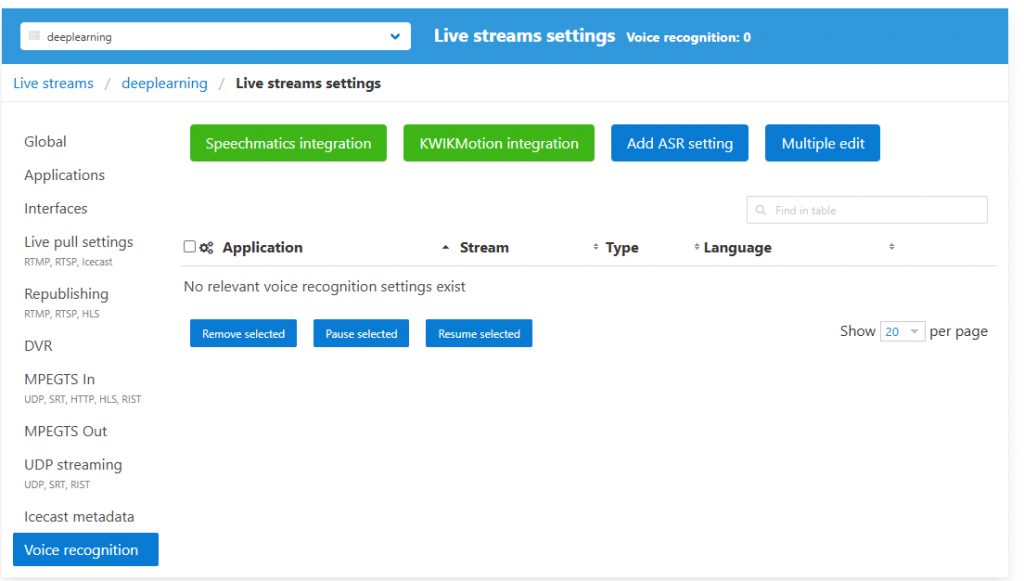
- Open the Voice recognition section in the left-side menu.
Here you see a page where you can start defining settings.
Engine-specific settings
If you use Speechmatics or KWIKmotion and want to manage provider credentials in WMSPanel, open the corresponding dialog and set the server-wide provider parameters as shown below.
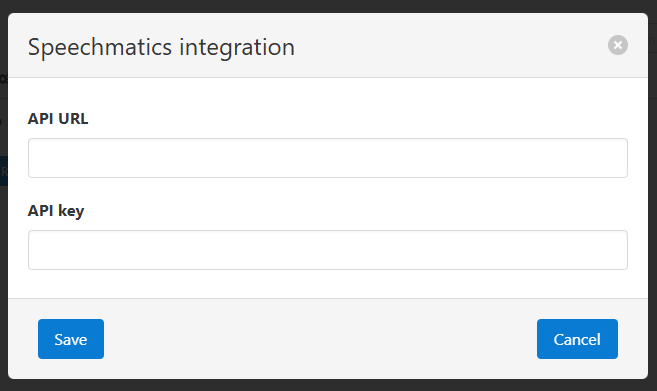
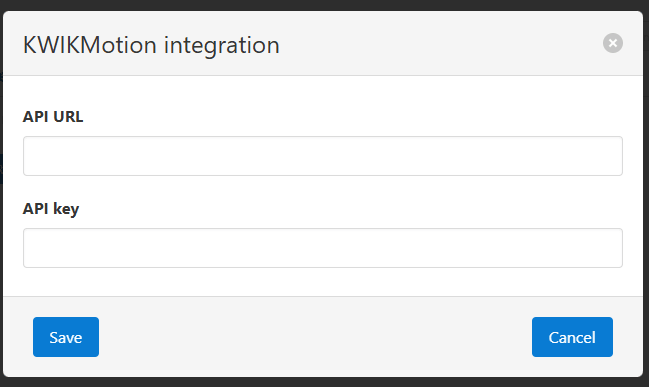
If you prefer to keep API URL and API key only on the server, leave these provider settings empty in the UI and keep them in Nimble Streamer configuration.
Application settings
Follow these steps to define application ASR settings:
- On Voice recognition tab, click Add ASR setting.
- Select the ASR Engine. Choose the engine that will process audio for this application or stream. The engine is selected when the setting is created. After that, you can edit the setting parameters, but not change the engine type for the existing setting. If you need to switch the same application or stream to another ASR engine, create a new setting with the required engine.
- Enter the application name. For a new application, specify the Nimble application name that will receive live input. For example,
live,tv, or another application used in your ingest and playback workflow. - Optionally enter the stream name. Leave the stream field empty if the rule must apply to all streams in the application. Enter a stream name if only one stream needs this ASR configuration.
- Set the source language. Use the language expected in the live audio. For example,
en,es,fr, or another supported language code for the selected engine. - If translation is required, set target languages.
For providers that support translation, define the target language list according to your workflow. If no target language is set, Nimble Streamer will generate transcription captions without translation. - Fill in provider-specific options if needed.
For example, Speechmatics may use transcription configuration parameters, while KWIKmotion may use WebVTT styling options. Keep default values unless your workflow requires a specific behavior. - Save the setting.
- Make sure WebVTT generation is enabled for the application or globally.
Go to the relevant Global or Applications section in Live Streams Settings and enable Generate WebVTT for audio. See articles like this one for details - Restart the input stream.
Nimble Streamer applies the updated ASR rule when the input stream is restarted. After the stream is picked up again, the HLS output will include WebVTT subtitles generated according to the new voice recognition setting.
Here are some examples of filled in forms.
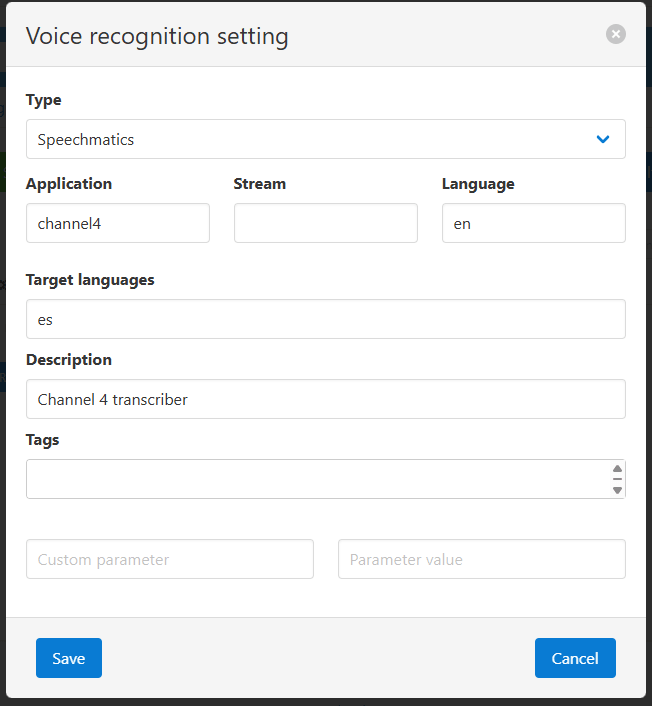
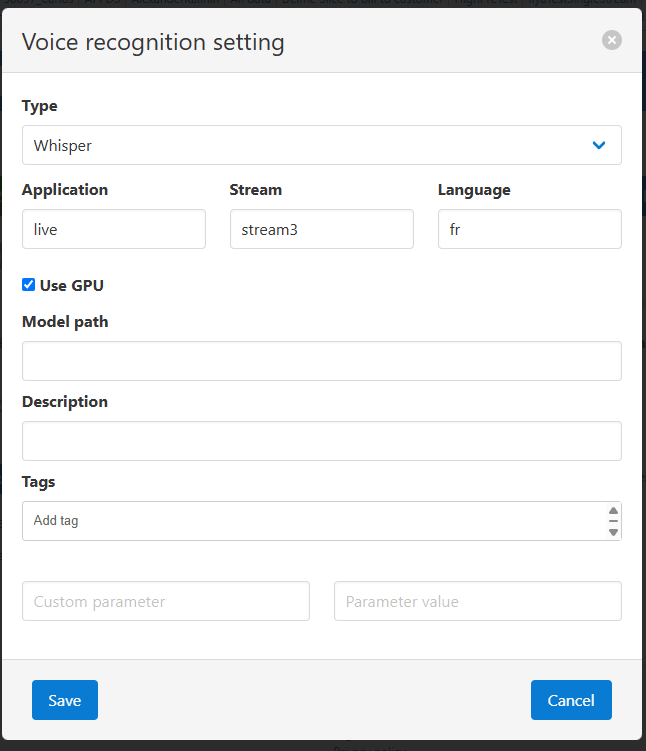
Here’s an example of a defined application that is being synced up with Nimble instance:
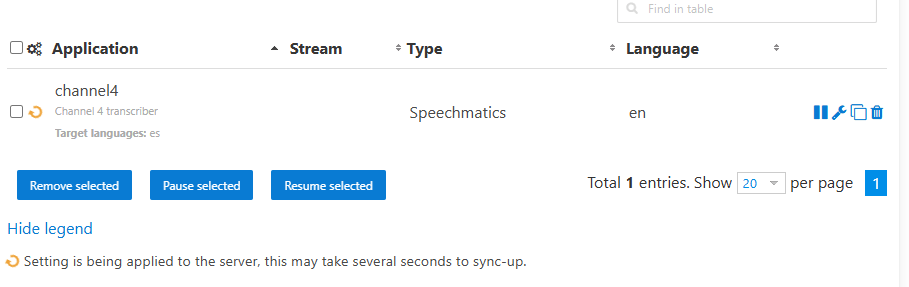
When to use UI and when to use config files
Use WMSPanel UI when you want a clear operational workflow for daily management: adding applications, assigning ASR engines, changing languages, pausing or resuming settings, and checking which streams have recognition enabled.
Use configuration files when you need automation, deployment templates, or strict local control over credentials. This is especially relevant for Speechmatics and KWIKmotion API keys: if server-wide integration data is not set in WMSPanel, Nimble Streamer continues using the local configuration.
Both approaches are compatible with the same Nimble Streamer voice recognition model. The new UI simply makes the setup easier to operate for streaming teams, OTT service owners, and new users who prefer forms over manual JSON editing.