Nimble Streamer supports DVB teletext and closed captions from DeckLink SDI input. It can extract DVB teletext and CC 608/708/A53 caption data from an incoming SDI signal, process it through Live Transcoder, and preserve captions for downstream delivery workflows such as HLS, MPEG-TS, recording, repackaging or further transcoding.
| Capability | Supported in Nimble Streamer |
|---|---|
| DeckLink SDI input captions | Yes |
| DVB teletext extraction | Yes |
| CC 608 / 708 / A53 extraction | Yes |
| Embedded SDI caption processing | Yes |
| Manual MPEG-TS teletext descriptor | Yes |
| Typical workflows | SDI ingest, broadcast captions, HLS captions, MPEG-TS output, recording, repackaging |
Supported Subtitle and Caption Formats
Nimble Streamer supports the following subtitle and caption data from DeckLink SDI input for this workflow:
- DVB teletext.
- Closed captions carried as CC 608/708/A53 data.
When to use this workflow
Use this workflow when an SDI source carries caption or teletext data that must remain available after ingest. Typical scenarios include broadcast SDI ingest with DVB teletext, preserving CC 608/708 captions from baseband video, converting SDI contribution into IP streaming outputs, recording captioned live streams, and preparing SDI sources for HLS or MPEG-TS delivery.
Set up SDI input first
Before processing SDI teletext or closed captions, you need to set up the SDI input itself.
Please refer to SDI input setup article for full procedure.
Here’s an example of Live Transcoder scenario ready for further adjustment for teletext.
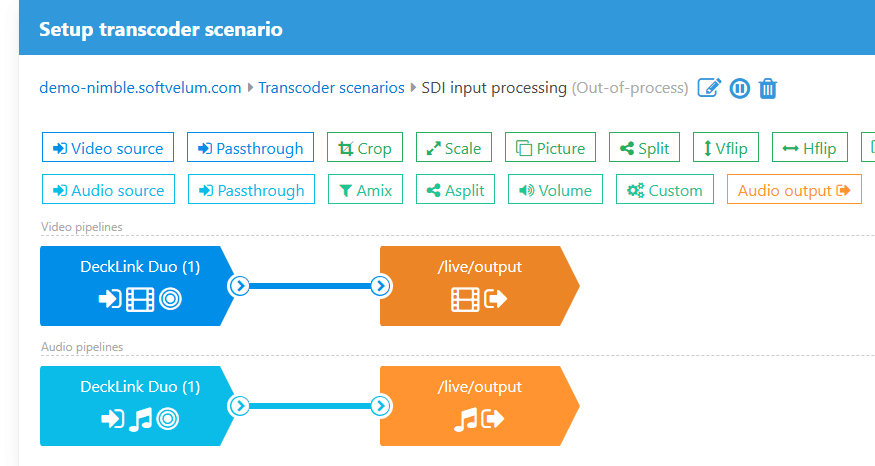
Make sure you test the output live stream via designated protocol before moving forward.
Capturing DVB Teletext from DeckLink SDI Input
The teletext processing requires theыу steps.
Enable subtitle processing
Before using DVB teletext from DeckLink SDI input, you need to enable DVB subtitle processing in Nimble Streamer.
Add the following line to nimble.conf:
dvb_subtitles_processing_enabled = trueRestart Nimble Streamer after changing the configuration file as described in this reference page.
This setting enables the internal subtitle processing required for the DVB subtitle handling.
DeckLink exposes DVB teletext packets only when teletext lines capture is enabled for the input. In WMSPanel, open the transcoder scenario and configure the DeckLink’s Video source.
Video Source Parameter
Set the teletext_lines parameter to “all” to the Video source settings:
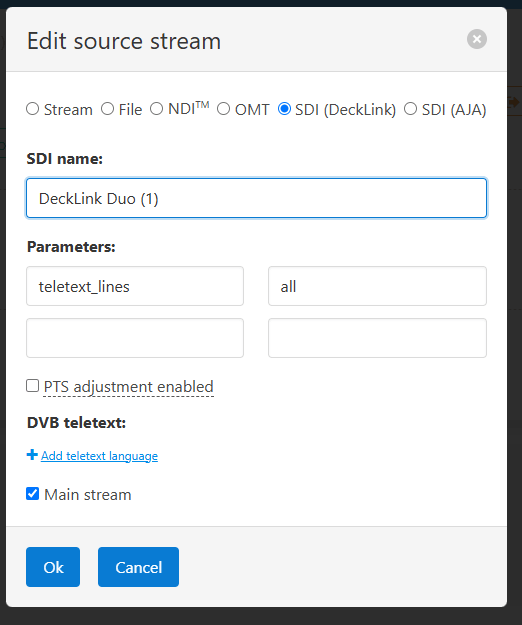
This tells the DeckLink input to capture all teletext lines from the SDI signal. Once enabled, Nimble Streamer can receive DVB teletext packets from the DeckLink source and pass them further through the processing chain.
Use this setting only when the SDI input actually carries DVB teletext and that data must be preserved or processed downstream.
Configuring the MPEG-TS teletext descriptor in WMSPanel
You also need to specify respective MPEG2TS teletext descriptor settings for the languages carried as the DVB teletext. This descriptor is required for any further processing, but SDI input does not provide it as part of its data, so it needs to be set manually by the user.
If the MPEG-TS teletext descriptor is not configured, then “eng” (English) with page “801” will be used.
You can configure the teletext descriptor in the Video source settings. Click on “Add teletext language” to show respective option and define the language:
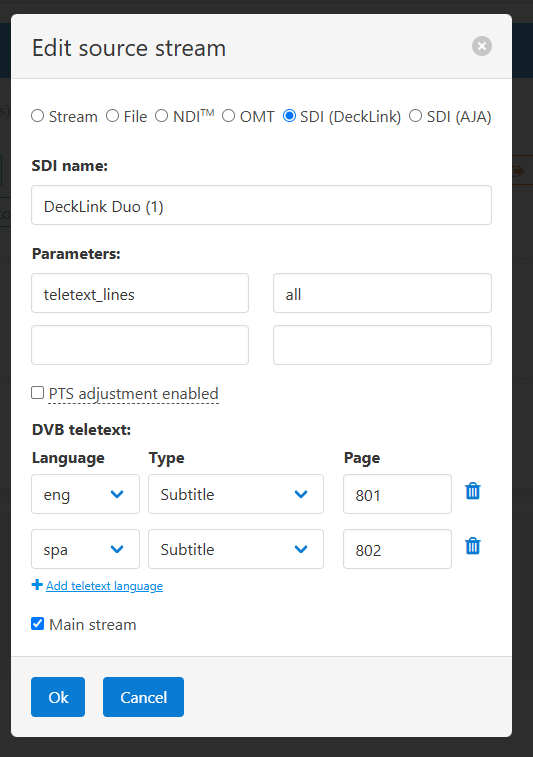
The UI allows you to specify multiple languages that are present in teletext. This is useful when the source contains teletext pages for several languages and downstream components need the descriptor information to identify them correctly.
Capturing Closed Captions from DeckLink SDI Input
If the incoming DeckLink SDI signal carries CC 708/608/A53 data, Nimble Streamer will extract that data automatically.
You only need teletext_lines parameter set to “all” in SDI source. Once SDI input is configured, you’ll get closed captions in your output right away.
FFmpeg DeckLink fork for testing
During development and debugging, Softvelum created a fork of FFmpeg for testing DVB scenarios.
This fork adds behavior needed for the test workflow: when MPEG-TS input file contains teletext or closed captions, FFmpeg can pass that data to a DeckLink output device. This allowed our engineers to generate SDI test signals with teletext and validate how Nimble Streamer receives and processes the data from DeckLink.
You can run it like this:
./ffmpeg -hide_banner -loglevel error -nostats -re -i teletext-eng.ts -map 0:v:0 -map 0:s:0 -map 0:a:0 -c:v wrapped_avframe -pix_fmt uyvy422 -c:s copy -c:a pcm_s16le -ar 48000 -ac 2 -f decklink -teletext_lines all "DeckLink Duo (1)"This sends teletext and closed captions into SDI output which you specified (in our case it’s “DeckLink Duo (1)“).
You can run ffprobe to make sure this file has the teletext:
ffprobe teletext-eng.tsThe output will look like this:
Input #0, mpegts, from 'teletext-eng.ts':
  Duration: 00:01:00.62, start: 1.400000, bitrate: 4401 kb/s
  Program 1
    Metadata:
      service_name    : Service01
      service_provider: FFmpeg
  Stream #0:0[0x100]: Video: h264 (High) ([27][0][0][0] / 0x001B), yuv420p(tv, top first), 1920x1080 [SAR 1:1 DAR 16:9], 25 fps, 25 tbr, 90k tbn, 50 tbc
  Stream #0:1[0x101](eng): Audio: aac (LC) ([15][0][0][0] / 0x000F), 48000 Hz, stereo, fltp, 130 kb/s
  Stream #0:2[0x102](eng): Subtitle: dvb_teletext ([6][0][0][0] / 0x0006), 492x250
You can see “Subtitle: dvb_teletext” element there which means you’ll have teletext on your SDI device after running ffmpeg command.
FAQ
Does Nimble Streamer support DVB teletext from DeckLink SDI input?
Yes. Nimble Streamer can extract DVB teletext data from DeckLink SDI input when DVB subtitle processing is enabled and teletext line capture is configured.
Does Nimble Streamer support CC 608/708 from SDI input?
Yes. If the incoming DeckLink SDI signal carries CC 608/708/A53 data, Nimble Streamer can extract it automatically.
Why do I need to configure the MPEG-TS teletext descriptor manually?
SDI input does not provide MPEG-TS teletext descriptor data, so Nimble Streamer needs the user to define language and page information for downstream processing.
Can this workflow be used for HLS captions?
Yes, the extracted caption or teletext data can be preserved for downstream delivery workflows, including HLS-related processing where the output workflow supports captions.
Summary
Nimble Streamer now supports DVB teletext and closed captions from DeckLink SDI input, both DVB teletext and CC 708/608/A53 closed captions.
Feel free to install Nimble Streamer, set up SDI input as described above and try this in action.